
Removing a product photo's background is only the first step. Before using the cutout in a listing or campaign, inspect its edges against both light and dark backgrounds, check that every included part remains visible, and review the exported file at its actual display size. This is especially useful for products with thin handles, cords, glass, or partly transparent packaging.
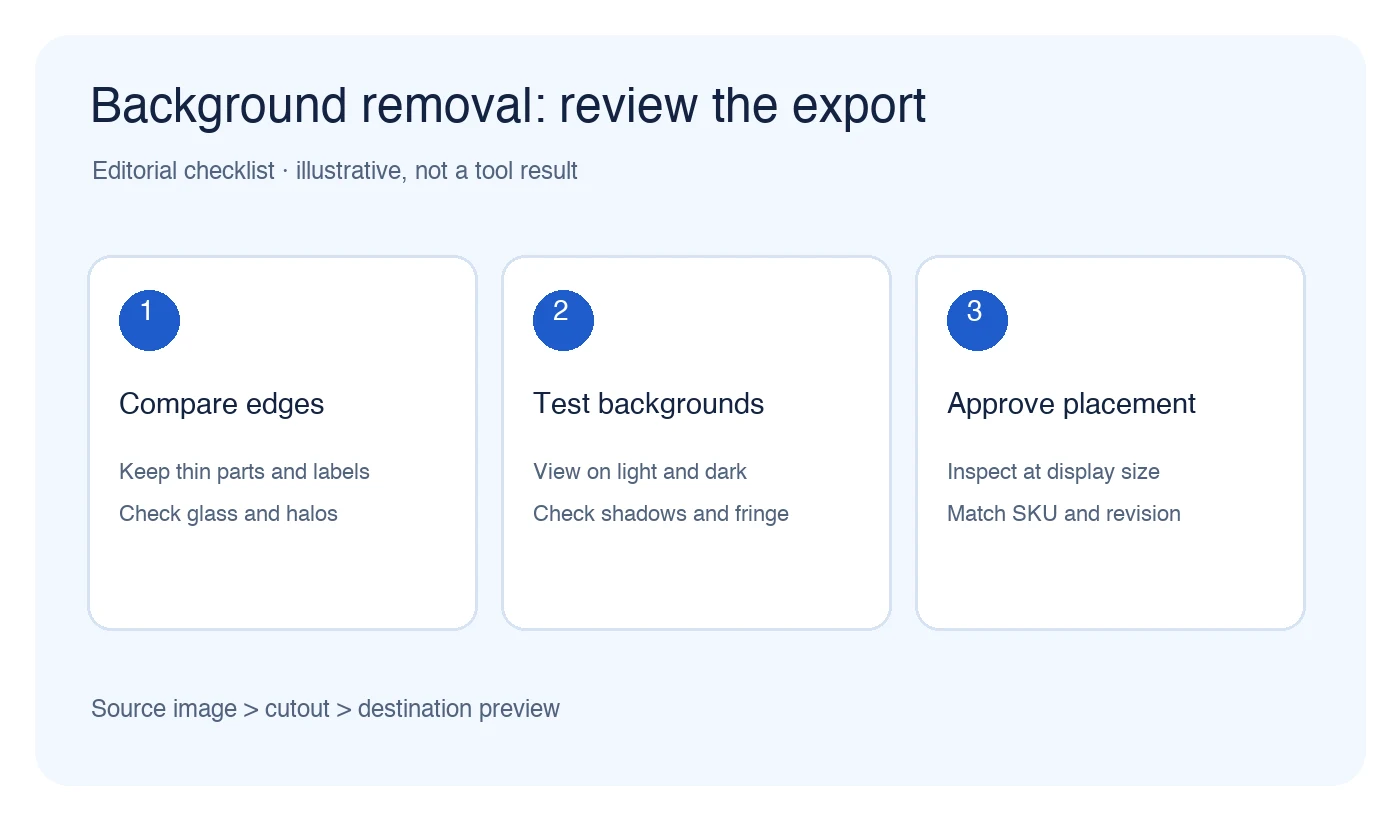
Editorial checklist, not a PicTech tool screenshot or quality test.
Why a clean preview can still need review
A cutout may look convincing on the editor's default backdrop while a faint halo appears on a dark card or a narrow strap disappears at thumbnail size. Neither the file extension nor a transparent preview proves that the product has been separated correctly. Keep the untouched source image so you can compare what the cutout retained and removed.
The PicTech AI background remover accepts JPG, PNG, and WebP files up to 10 MB according to its current page. It offers a transparent PNG download and describes the service as currently free; the page also says practical format, size, and processing limits can apply. Check the live interface before starting a large batch. This article is a review checklist, not a measured test of the tool.
1. Check the subject boundary before changing the background
Zoom in on the edges that carry product information: a cable, handle opening, narrow rim, buckle, or label attached to the item. Compare them with the original. A missing attachment can make the offer look different, while a remaining piece of the old background may resemble part of the product.
For glass or translucent packaging, examine what should remain visible through the material. A hard, opaque silhouette may be wrong even if the outer contour is smooth. Conversely, a perfectly transparent-looking area may have removed a real product detail. Judge the export against the source and approved product record, not against a generic idea of a "clean" cutout.
2. Test the cutout on two simple backgrounds
Place the exported PNG on white and on a dark neutral color in a suitable editor or listing preview. The contrast change makes pale fringes and dark remnants easier to spot. Also check shadows and reflections: removing too much can make an item appear to float, while keeping an old floor or studio reflection can clash with the new scene.
If the image will appear on a colored storefront card, test that actual color too. A cutout that passes on white is not automatically ready for every placement. Keep the background choice separate from the question of whether the product boundary is accurate.
3. Inspect the file at the destination size
Open the downloaded file, confirm its format and dimensions, then view it at the size shoppers will see. A hairline, label, or thin accessory that is visible at full resolution may disappear in a small grid thumbnail. If a separate dimension change is required, the image resizer is a distinct workflow; enlarging a small source does not recover missing detail.
Check the publishing channel's current requirements for dimensions, background, and file format. Do not assume one marketplace's rules apply to another, or that every gallery position has the same requirements as the primary image.
4. Approve the export against the source
Before replacing a live listing image, compare the source, cutout, and destination preview side by side. Ask:
- Are the product and all included parts still present?
- Are fine edges, transparent areas, and labels represented accurately?
- Is any old background or unwanted halo still visible?
- Does the chosen background and shadow make sense in this placement?
- Is the exported file assigned to the correct SKU and revision?
Keep the source and approved export as separate files. Record the intended placement and revision so the next editor can identify the image that was actually approved.
Common questions
Does a transparent PNG guarantee a clean product edge?
No. Transparency describes the output format. The boundary still needs visual review against the original and the backgrounds where the image will appear.
Should I remove every shadow?
Not automatically. Decide whether the shadow belongs to the product presentation and whether it works with the new background. Compare with the approved visual style for the listing.
Can I use the same cutout everywhere?
Use it only after checking each destination's current rules and preview. A small thumbnail, a main product image, and a campaign graphic can reveal different edge or composition problems.
By the PicTech Team. Official feature pages checked on October 31, 2026. No cutout-quality, speed, or marketplace-acceptance test is claimed.