
PicTechAI Online Screen Recorder
Record your screen online for free
Start a clean screen recording from your browser. Capture a full screen, app window or browser tab, add microphone and system audio, then save the result as a video or GIF for tutorials, meetings and product demos.
Private browser workflow
Record tutorials, meetings and product demos without extra software
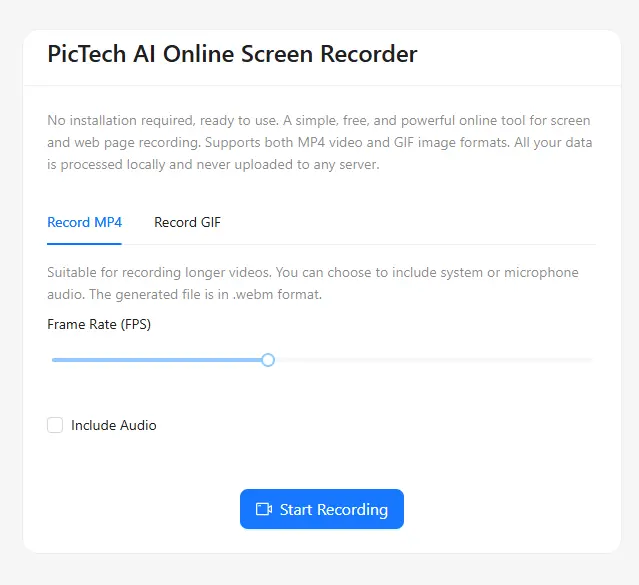
PicTechAI keeps the workflow simple: choose what to share, select audio options, record the moment and download the finished file. It works well for online classes, SaaS walkthroughs, game clips and quick support videos.
Open screen recorderEverything you need for practical screen recording
Record a browser tab, application window, or full screen for tutorials, meetings, support, and product demonstrations.
Flexible capture modes
Record the entire screen, a specific application window or a single browser tab depending on what you need to show.
Microphone and system audio
Add narration from your microphone and capture tab or system sound for lessons, reviews and walkthrough videos.
Video and GIF output
Use video for longer sessions and GIF for quick loops that fit documentation, chats and social posts.
No installation required
Open the page and start from the browser without downloading a desktop screen recording app.
Clear, watermark-free results
Create clean recordings for tutorials, product support and team communication without visible branding on the output.
Local-first workflow
The recording process starts in your browser, giving you a safer workflow for sensitive demos and meetings.
Choose the right recording format
Pick a format based on length, audio needs and where the recording will be shared.
Record as MP4/WebM video
Best for tutorials, meetings, courses, product demos and any recording that needs audio or longer playback.
Record as GIF
Best for short visual demonstrations in help docs, chat messages, release notes and social posts.
Built for everyday recording scenarios
Use PicTechAI when you need a fast, clear recording instead of a heavy editing workflow.
Online lessons and tutorials
Record slides, browser steps and spoken explanation for students, customers or internal training.
Meetings and product walkthroughs
Capture a meeting recap, SaaS workflow or product demo so teammates can review it later.
Support, bugs and game clips
Show exactly what happened on screen with a short recording that is easier to understand than text alone.
How to record your screen online
The process is short and familiar, even if you have never used a screen recorder before.
Open the recorder
Click the recording button and choose whether to capture your screen, window or browser tab.
Select audio options
Enable microphone, system audio or tab audio when your recording needs narration or sound.
Save the result
Stop recording, preview the file and download it as a video or GIF for sharing.
Screen recorder FAQ
Answers about PicTechAI online screen recording, audio capture and export formats.
Is PicTechAI screen recorder free?
Yes. The online screen recording workflow is designed to be free for everyday recording tasks.
Do I need to install software?
No. You can start from a modern browser without installing a desktop recorder.
Can I record microphone and system audio?
You can record microphone audio and supported system or tab audio when the browser and operating system allow it.
Can I record GIFs?
Yes. Use GIF output for short demonstrations where audio is not needed.
Will PicTechAI add a watermark?
No. The page is intended for clean, watermark-free screen recordings.