
A promotion image can show the right discount and still promise the wrong deadline. Before translating “Ends 04/05 at midnight,” check the actual date, time and time zone in the campaign settings. Then write the deadline so shoppers can read it without guessing which date format or clock the original designer used.
Confirm which moment ends the offer
Open the campaign record and read the end date and time. Use that record to resolve a slash date such as 04/05, which readers may interpret as April 5 or May 4. Also confirm whether “midnight” means the beginning or the end of the day named in the source. If the record and the artwork disagree, ask the campaign owner to resolve the difference before exporting new images.
For a Shopify discount, the store time zone controls scheduling. The Shopify discount guide explains how that setting affects start and end times. If each regional store runs its own sale, review the schedule for each store separately.
Write the date with a month name and a time zone
Spell out the month and keep the time zone next to the time. The W3C guide to international date formats shows why all-numeric dates can be ambiguous across locales.
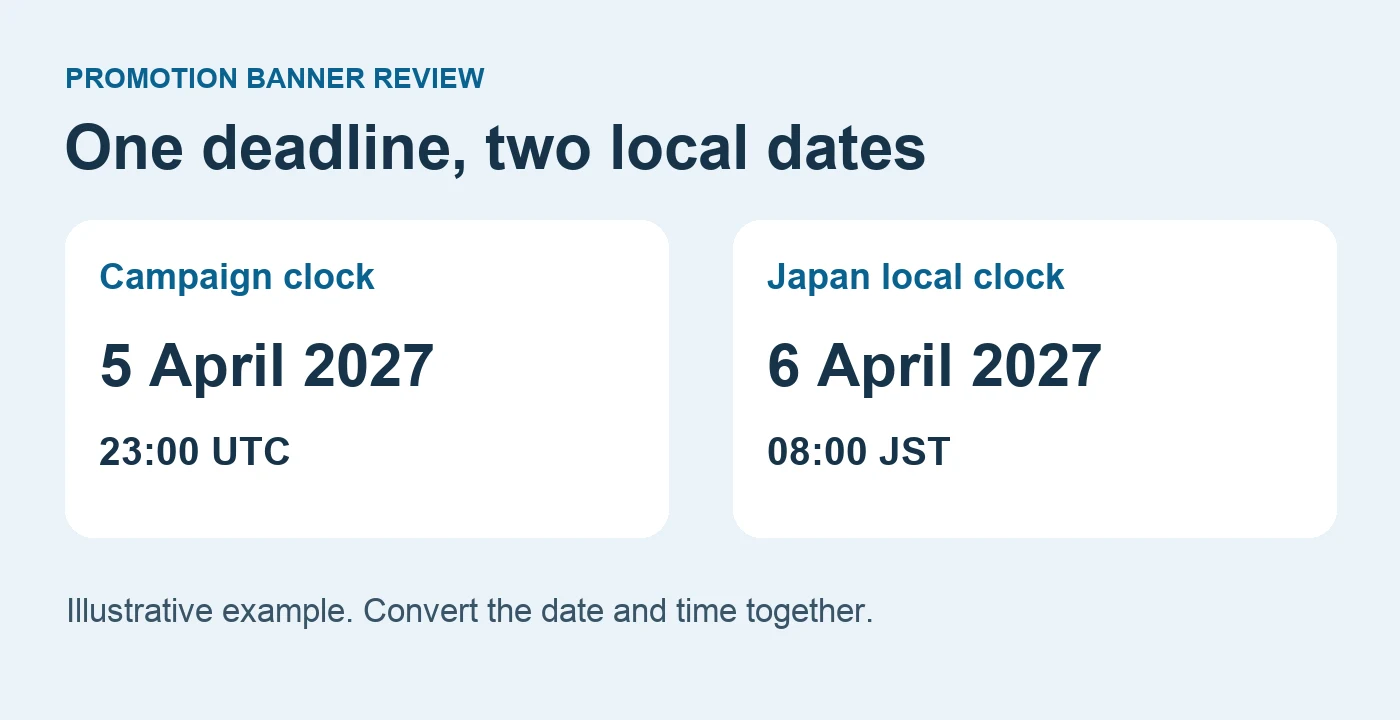
For example, suppose the campaign ends on 5 April 2027 at 23:00 UTC. A version for an audience in Japan could display “Ends 6 April 2027 at 08:00 JST.” Those two lines refer to the same moment. If you keep the campaign’s original time zone on all versions, label it explicitly. If you convert it for each market, convert the whole timestamp and check whether the calendar day changes.
Check the deadline in the downloaded banner
After translating a banner with PicTech.ai Image Translation, check the deadline against the campaign record. The PicTech.ai editing guide explains how to select a translated text object, edit its wording, compare with the original, and save and export. Keep the time and zone together when adjusting line breaks. Put the deadline in the surrounding page text as well if it may be hard to read on a small image.
Open the downloaded file at the width shoppers will see, then compare it with the store’s campaign settings one last time. A quick review can ask three questions: What date will shoppers read? Which time zone applies? Does that time match the cutoff the store will enforce?