
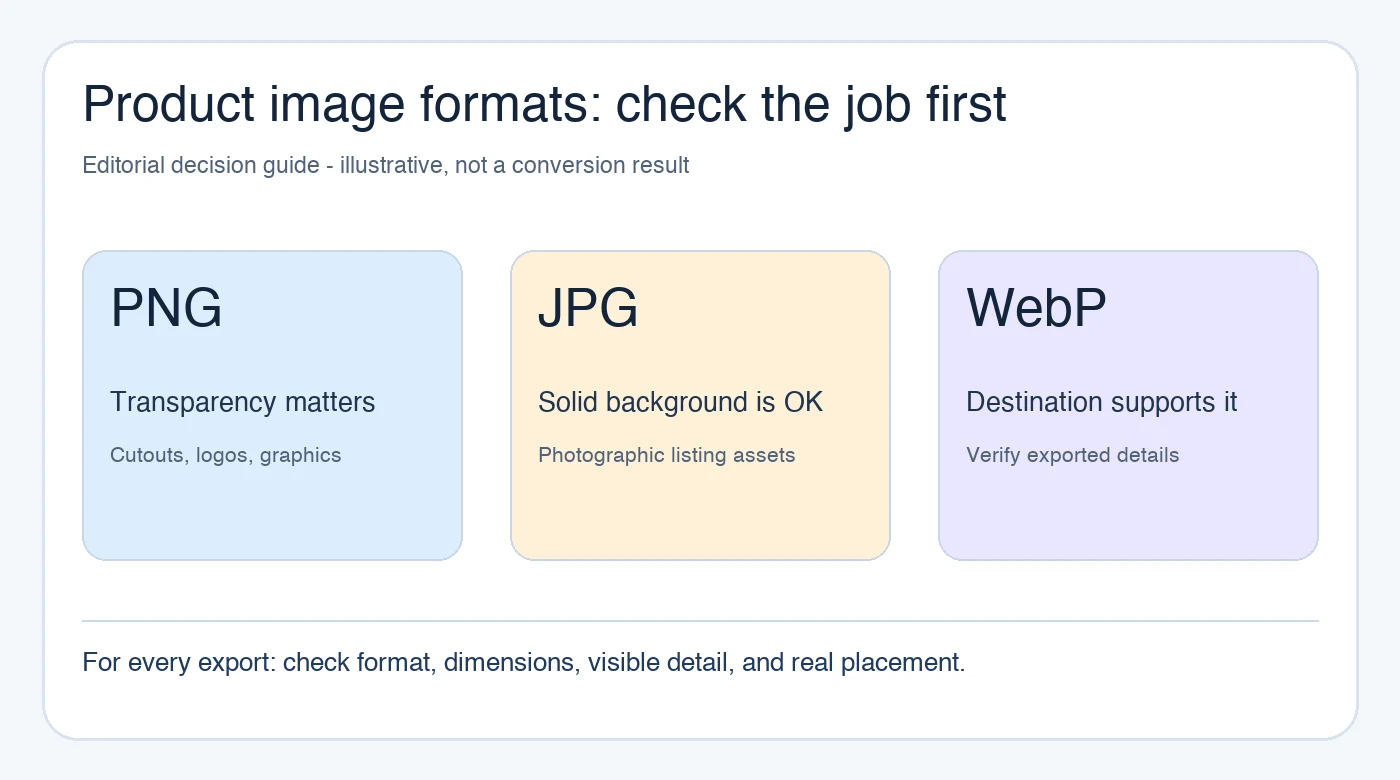
Choose a product image format by starting with the destination, not the smallest file. Keep a format with transparency when a cutout or logo must sit on different backgrounds; use a photo format only when a solid background is acceptable; and confirm that the store, ad platform, or content system accepts the exported file. Then inspect the real output at the size shoppers will see.
The checklist below is an editorial guide, not a conversion test or a screenshot of a PicTech result.
Start with the image's job
A main listing photo, a transparent product cutout, a comparison graphic, and a site banner may all need different files. Write down the destination's current requirements for accepted formats, dimensions, file size, background, and any text or logo restrictions. Those rules can change and may differ between the primary image and supporting images.
Do not rename a file from .png to .jpg and assume it has been converted. The file contents must actually be encoded in the target format. Keep the source file and make a working copy before changing formats.
When transparency matters, check it first
PNG can preserve transparent areas. That makes it useful for a product cutout, a logo, or a graphic that will be placed on several backgrounds. JPEG does not preserve transparency: a transparent source needs a deliberate background color before a JPEG export. Otherwise, a viewer or conversion workflow may fill those areas in a way you did not intend.
WebP can also support transparency, but that does not mean every publishing destination accepts it or every export keeps the same alpha information. Open the exported file and place it on both a light and a dark background. Check thin edges, semi-transparent packaging, shadows, and small lettering. A file extension alone cannot prove those details survived.
The PicTech AI image converter provides a format-conversion workflow. Confirm the currently offered input and output choices in the live interface before processing a batch; this article does not claim a particular conversion result.
For photographs, compare appearance at the intended size
JPEG is a common choice for photographs without transparent areas. It can be practical when the destination accepts it and the exported image looks right. But a product photograph may also contain a printed label, fine fabric pattern, or small specification text. Inspect those details after conversion, not only the large product shape.
Compare the source and export side by side at full size, then at the destination's thumbnail or gallery size. Check whether text remains readable, colors still match the approved product record, and edges have gained visible artifacts. Avoid repeatedly converting a previously compressed file when the original is available; each new output should be checked against the best source you have.
Separate format choice from pixel and file-size limits
Changing format may change storage size, but it does not automatically satisfy a minimum pixel requirement or fix a soft source. First confirm the exported width and height. If the destination's byte limit is the remaining problem, the image compression workflow is a separate step to evaluate. Compare the resulting file with the source and the final page preview rather than assuming a smaller file is always better.
For an image with text or a logo, pay particular attention to the small elements. A visually acceptable full-screen preview can still become hard to read in a listing grid. The PicTech AI user guide provides the current help entry point; use the destination's own rules for the final approval decision.
A five-point approval checklist
Before replacing a live asset, verify:
- The destination accepts the file's actual format and dimensions.
- Transparent areas or the chosen solid background behave as intended.
- Product color, labels, fine edges, and any included parts still match the source.
- The file looks right in its real thumbnail, gallery, or campaign placement.
- The approved export is linked to the correct SKU, locale, and revision.
Store the original, working copy, and approved export separately. If one image needs both transparent and solid-background versions, label those uses clearly so a later editor does not upload the wrong file.
Common questions
Is PNG always the best choice for product images?
No. Choose it when transparency or graphic detail is needed and the destination accepts it. A product photo with a fixed background may have different suitable options.
Can I use WebP for every storefront?
Check each destination's current format support and preview. A technically valid WebP file is not automatically accepted by every platform.
Does a smaller file mean the image is ready to publish?
No. Check dimensions, visible detail, product facts, background behavior, and the actual placement as well as file size.
By the PicTech Team. Official feature and help pages checked on November 1, 2026. No conversion quality, speed, or file-size reduction is claimed from a measured test.