
How to Record a Clear Review of a Translated Product Image
A recording can help a reviewer explain where a translated caption needs attention and how it relates to the original image. Prepare the source image, the current export and the approved wording first. Record one clearly identified issue at a time, then keep the recording with a written revision note so the editor can find the exact change.
Prepare a focused review view
Use the correct product variant, language and image revision. Open only the material needed to explain the issue and put the original and translated versions in an easy-to-follow order. Keep account menus, order details and unrelated customer information outside the capture area. Use approved demonstration material if the clip will be shared publicly.
Choose a normal viewing size for the whole composition, then a close-up that makes the affected wording readable. A short outline can name the image, identify the issue and state the requested correction. If the issue is a disputed specification or claim, get the approved value before presenting a change as final.
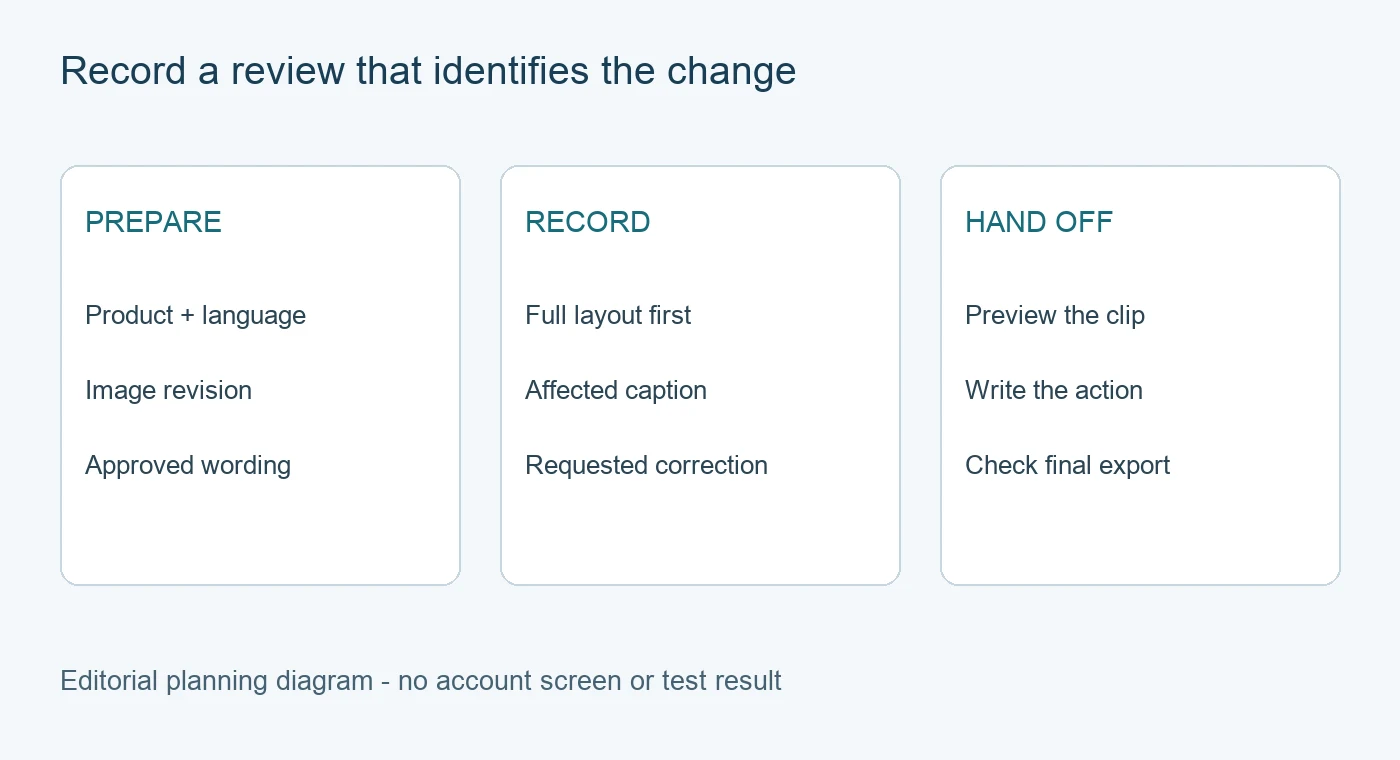
This is a planning diagram. It contains no recorded account screen or claimed test result.
Choose the capture source and audio intentionally
The PicTech online screen recorder describes capture of a browser tab, application window or screen. Select the source that contains the review material, then inspect the browser's sharing prompt before starting. Audio availability depends on the browser and operating system, so check the actual options shown for your device.
Use narration when a spoken explanation helps identify the change. For a silent visual note, leave a clear written correction with the clip. Avoid relying on cursor movement alone to explain an ambiguous word or number. If you need to move between windows, confirm that the selected capture source includes the intended material.
Show the issue and its context
Start by identifying the product image and target language. Show the complete layout before zooming into the area under review. Point to the exact caption, read the current wording and state the approved replacement or the question that still needs an answer.
For a fictional example, a product label might use an approved term that differs from the phrase in a surrounding translated callout. The clip should show both areas and identify the wording to use. It should also make clear whether the reviewer has approved a correction or is requesting a terminology decision.
The PicTech image translator helps prepare translated image text. Its output still needs review against the product information. A recording makes a review comment easier to locate, while the original source and approved text remain the basis for the correction.
Preview the downloaded recording
Stop recording and inspect the available preview and export options. The recorder page describes video and GIF workflows. Choose an available format that suits the destination and whether the explanation needs sound. Open the downloaded file and check that it shows the intended source, legible text and the complete instruction.
A recording of an edit is separate from the final image file. Ask the editor to save and export the corrected image, then compare that file with the requested change. The PicTech user guide documents original-versus-result comparison, saving and export in the image editor.
Keep the correction traceable
Attach a short note naming the product, language, image filename, revision and requested action. If the recording is long enough to cover several items, add timestamps to the note. Store the approved final export beside the review record so a later reader can see which feedback has been resolved.