
To make a product photo square, first identify everything the image needs to show, then position a 1:1 crop around that content. If the square cannot contain the product and its necessary accessories or labels, use a different composition instead of cutting them away. Check the exported file before replacing the listing image.
The difficult part is often deciding what belongs inside the frame. A centered main item can look tidy while a cable, attachment, or important measurement disappears at the edge. A square shape alone does not establish that the image still describes the offer correctly.
1. Make a content inventory before moving the crop box
Compare the photograph with the approved product record. Identify the main item, included accessories, and information that this particular image is meant to communicate. Distinguish included components from props: a decorative object in the photograph is not evidence that it comes with the product.
For a fictional example, a handheld device may be pictured beside its charging cable. If the image is intended to show the package contents, removing the cable changes what the shopper can see. If the cable is an optional extra, its presence may need a separate explanation. Resolve the content question before choosing the composition.
Keep the original file. Work on a copy so you can compare the complete scene with the final crop.
The illustration below is an editorial checklist, not a screenshot, product photograph, or measured tool result.
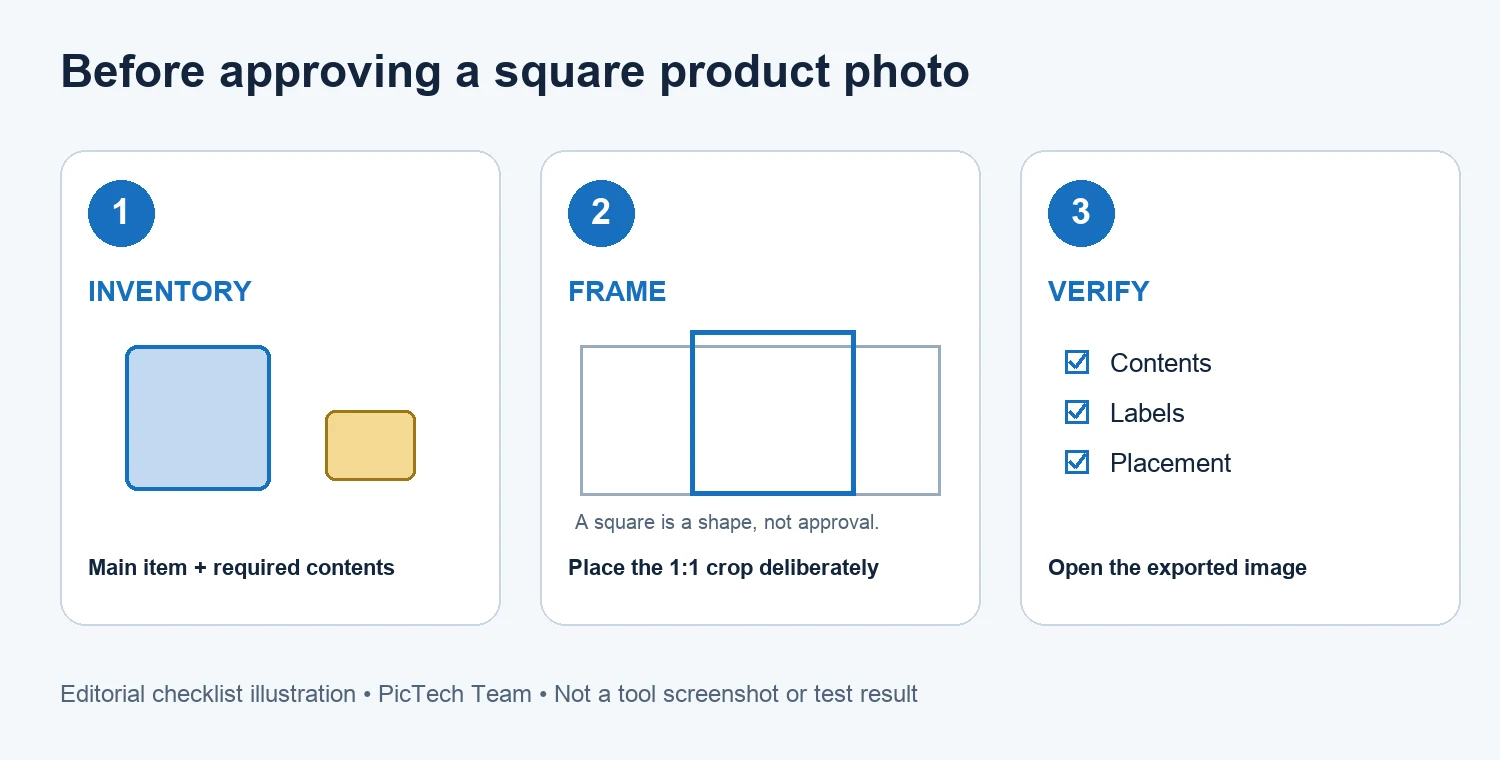
2. Choose a square ratio, then inspect all four edges
PicTech AI's image cropper offers a fixed 1:1 ratio alongside free selection and other ratios. Use the square as a framing guide, then adjust its position around the required content.
Look beyond the largest object. Check handles, straps, extended parts, included attachments, and labels near the boundary. A product can be technically inside the frame while one distinctive feature is cut off.
Do not mirror a product image just to make the composition balance. Flipping can reverse printed text or make a directional component appear different from the physical item. Rotation also needs a deliberate check of the item's intended orientation.
3. Recognize when cropping cannot solve the problem
A crop keeps a selected region and removes what falls outside it. It cannot create missing space around a tightly framed product.
If a tall object cannot fit comfortably in a square, moving the frame up and down may simply alternate between cutting off its top and its base. Start from a wider source photograph, take another photograph, or prepare an appropriate square composition with additional canvas space in a suitable editor. Review any new background and the product's proportions before approval.
The crop tool's ratio presets are conveniences, not current marketplace policy. Confirm the requirements of the destination and the role of the image there. A gallery detail image and a primary listing image may need different compositions.
4. Check dimensions after the composition is settled
Aspect ratio describes the relationship between width and height. Pixel dimensions describe how many pixels the exported image contains. A square crop can still be too small for the destination.
Inspect the downloaded file's dimensions. If a separate size adjustment is needed, the image resizer provides that workflow. Increasing the dimensions does not recover detail missing from the source, so check the original before enlarging a small crop.
For translated graphics, read every remaining text block. A crop that preserves the headline but removes the condition beside it can make the surviving message misleading. Recompose the graphic when necessary rather than approving a partial explanation.
5. Approve the export in its actual placement
Open the exported image and compare it with the original and the product record. Then check the destination preview before replacing the live asset.
- Are all components needed for this image's purpose visible?
- Do product proportions and orientation still match the item?
- Are necessary labels complete and readable?
- Does the composition work in the actual thumbnail or gallery placement?
- Does the selected file belong to the intended SKU and revision?
Save the approved export separately from the source and working copy. Record its SKU, intended placement, and revision so another team member can select the right file.
Common questions
Does choosing 1:1 guarantee an accepted listing image?
No. The ratio is one property. Content, dimensions, background, and other destination requirements still need review.
Can I crop away a note to make the photograph cleaner?
First establish whether the note carries information needed to understand the offer. Moving necessary information to another approved composition requires a content decision, not just a visual adjustment.
Should every product use the identical crop position?
Use a consistent visual approach, but inspect individual images. Products with handles, long attachments, or different orientations may need different framing.
By the PicTech Team. Official crop and resize feature pages checked on October 30, 2026. Examples are illustrative; no processing speed or image-quality test is claimed.