
If a product image uses a symbol to point to a condition, record the claim and the condition together before translating. After export, check the pair at the size shoppers will see. The headline may still read correctly even if its note has moved under a different claim or become too small to read.
Record what each note qualifies
Open the source image beside the approved product copy. For each claim with a marker, write down the exact claim, the marker and the full note. Give the pair an identifier in your working notes. That way, you can compare the original and translated versions even if the design uses a different symbol or order.
For a fictional wall shelf, “Mounting hardware included” might point to “Screws included. Wall anchors sold separately.” A second claim about outdoor use might point to “Use under cover only.” Keep those notes separate. A long translation can make it tempting to condense both into “See installation instructions,” which leaves the shopper without either condition.
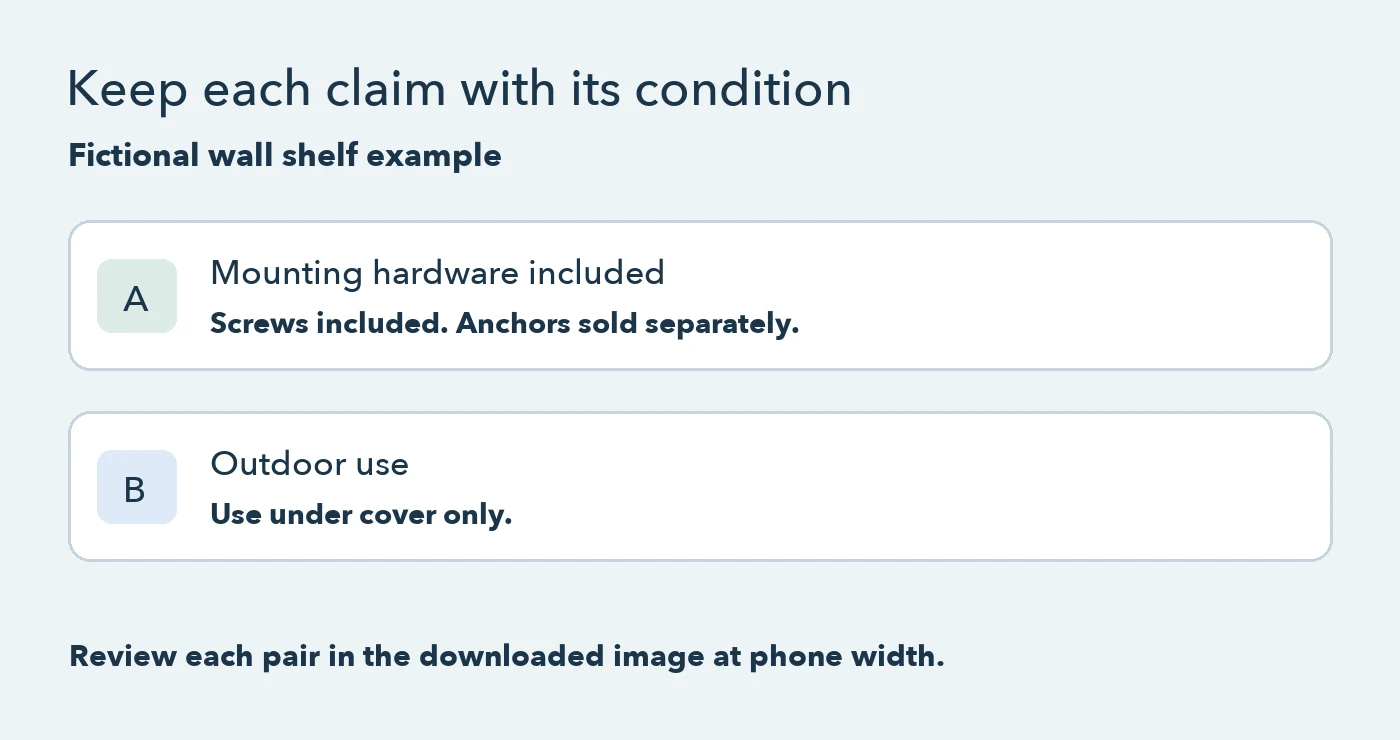
Put purchase conditions where shoppers can read them
If the condition changes what the shopper buys or how they can use the item, try putting it directly into the translated copy. “Mounting screws included. Anchors sold separately.” is easier to read than a broad heading with a distant footnote. “For covered outdoor use” keeps the limitation with the claim. Use only wording confirmed by the product owner.
For a layout reference, the FTC staff guide to digital disclosures discusses placing a disclosure close to the claim it qualifies. Use the source specification to check what the note actually means before moving or rewriting it.
Follow each claim through the export
In PicTech.ai Image Translator, start with one representative image. The editor guide documents Compare Edit and controls for changing text and moving text objects. If the note lands beneath a different claim, bring it back alongside the correct line and compare the pair with the source. If the canvas is cramped, give the pair its own panel or put the condition next to the corresponding claim in the listing text.
Open the downloaded file and preview it in your storefront at phone width. Follow each label to its note, checking attachments, measurements and exclusions in context. If a condition disappears when the photo is cropped or a shopper needs to zoom to read it, revise the layout and check the new export.