
Translating Product Screenshots: Keep Interface Labels Shoppers Can Find
When a product image includes a screenshot of a device or app, identify which words the shopper will actually see on the screen. Translate the explanation around the screenshot into the target language. Use an approved screenshot of the localized interface when that interface exists. If it is unavailable, keep the real interface labels visible and explain them in the caption.
Check the interface language for the exact product
Confirm the model, software version and language available to customers in the listing's market. Use a screenshot from the matching release or ask the product owner to verify it. A caption in the target language does not establish that the device's menus support that language. If availability varies by version, describe only what the product owner has confirmed for the selected version.
For a fictional example, suppose an English-only control panel shows a button labeled “Export.” A Spanish listing could retain “Export” on the screenshot and write “Selecciona Export para guardar el archivo” in the caption. The shopper has a Spanish explanation and the exact label to look for. The example does not describe a real product or any particular app's export behavior.
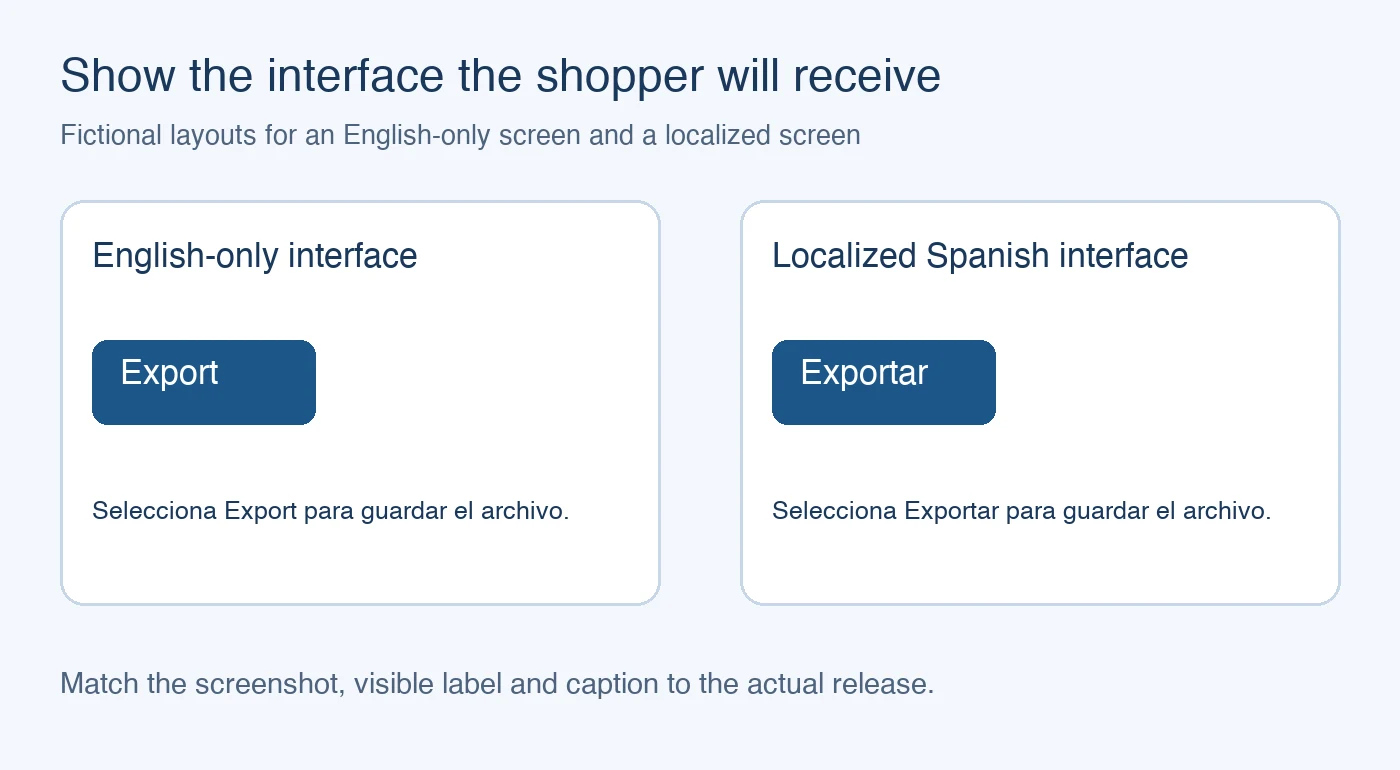
Separate the screenshot from the instructional overlay
Mark each text area as either part of the captured interface or an editorial overlay. Screenshot text includes buttons, menu entries and status labels. Overlays include callouts, steps and captions added for the listing. Translate approved overlays and keep each pointer attached to the control it describes. If the displayed screenshot is a composite, identify it as an illustration where readers might otherwise mistake it for the shipped interface.
PicTech AI's image translation feature documents text recognition, replacement and review of the resulting layout. When the screenshot is embedded in a larger graphic, preserve a clean copy of it. If a translation changed a label that needs to remain visible, restore the approved screenshot in the layout and adjust the surrounding explanation separately.
Verify the instruction against the visible label
Follow the order a shopper will read. A step such as “Select Export” should point to the displayed Export button. If a localized screenshot is used instead, update every caption and pointer to match that version. Check text color, line breaks and contrast at the actual listing width. Avoid asking the reader to infer which label corresponds to a translation from its position alone.
The PicTech AI user guide describes comparing an edited image with the source and reviewing an export. Compare the latest graphic with the approved screenshot before delivery, then open the downloaded file to check that the screen label and callout remain legible.
Record what was approved for the next update
Keep the screenshot source, software version, available language, caption text and final export together. If the menu changes, replace the recorded screenshot and review its dependent captions in the same revision. The final check is whether someone reading the localized listing can find the stated action on the interface they will receive.