
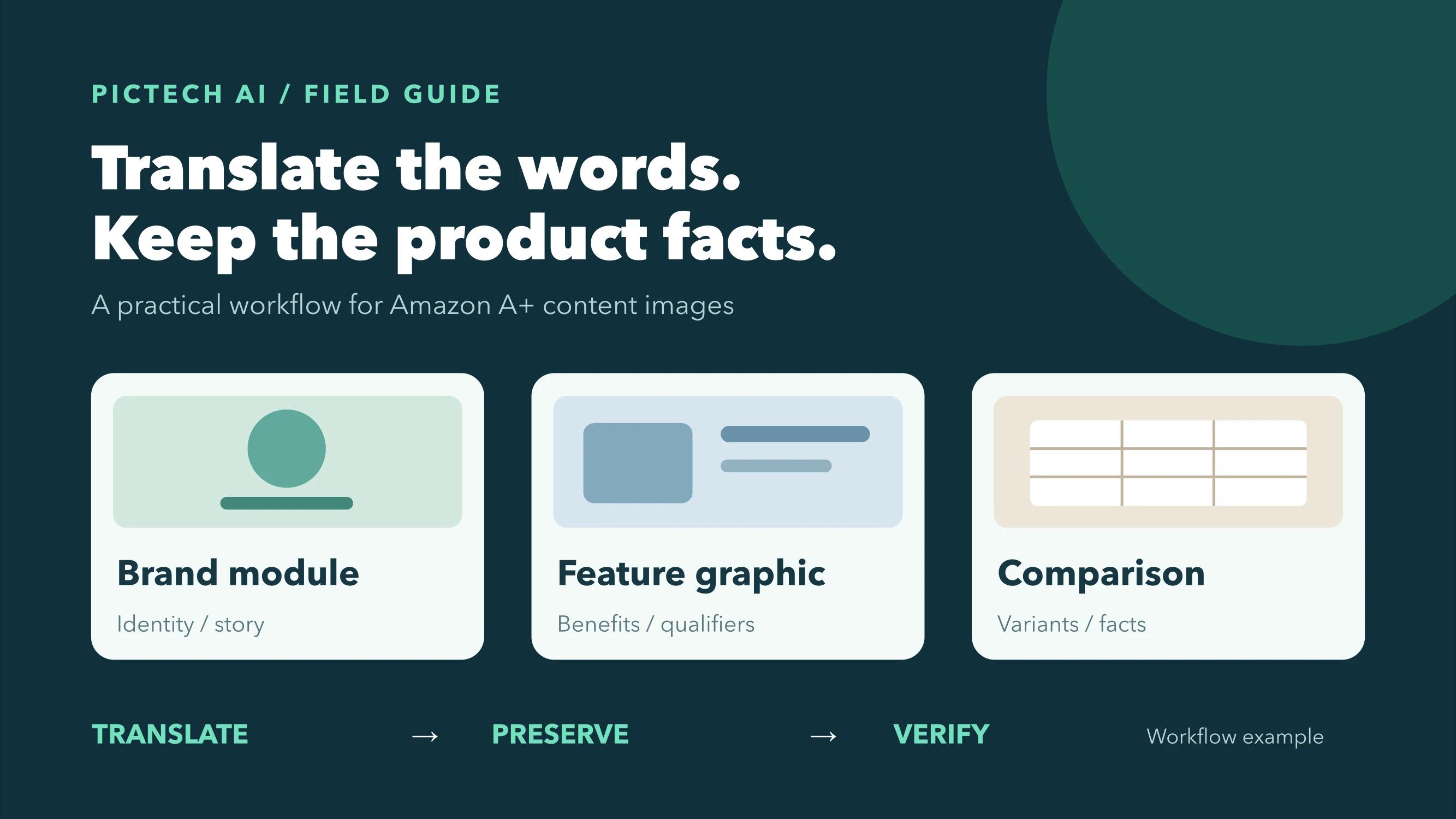
If you already have A+ content for one marketplace, translating the words baked into its images may seem like the quickest way to prepare another language version. The risk is that the image contains several kinds of information at once: brand marks, benefit copy, product facts, and sometimes a comparison between variants. They should not all be handled the same way.
For Amazon A+ content images, translate shopper-facing copy, preserve approved brand and product identifiers, and verify every specification and claim against a separate product record. Work module by module, then preview the assembled A+ page rather than approving isolated images.
This is an image-localization workflow, not a promise that a translated asset will pass Amazon review. Check the current requirements for the specific marketplace and A+ content type in Amazon's A+ content guidance before submission.
First, separate A+ content from the listing image gallery
A+ modules can combine images with editable text fields. That distinction matters: if a sentence can be entered in the module's text field, it may be easier to localize, review, and maintain there than to bake a long paragraph into an image. Amazon's A+ best-practices post recommends limiting text embedded in images and using descriptive image keywords.
Create an inventory of the actual modules in your source project. Do not assume that every line visible on the finished page is part of the image file. Export or collect the image assets, the editable module copy, and the approved product specifications as three separate inputs.
| A+ asset | Translate | Preserve or check separately | Main review risk |
|---|---|---|---|
| Brand-story image | Descriptive copy that a shopper needs to understand | Approved brand name, logo, trademark styling | A translated slogan may change the brand's promise |
| Feature or lifestyle graphic | Benefit headings and short usage labels | Physical product, color, model name, evidence for claims | A short qualifier can disappear in a redesigned image |
| Comparison module image | Row labels and explanatory captions | Variant order, SKU, measurements, included items | A correct phrase can land in the wrong column |
| Image with packaging visible | Supporting callouts outside the product | Printed pack artwork unless an approved local pack exists | The image may stop matching what buyers receive |
The table is a working classification, not an Amazon rule. A seller's compliance, brand, and product teams should decide the final treatment of regulated labels and claims.
Build one source-of-truth sheet before you translate
Record the source text, approved target wording, owner, and whether the item is translate, preserve, or verify. For a comparison module, also record the SKU and the exact row or column to which each value belongs. Keep the sheet outside the graphic: an existing image can contain an old specification, and a translation can faithfully reproduce that error.
Consider a fictional insulated-bottle A+ module. The artwork says “keeps drinks cold,” shows 750 mL, and names variant B-75. The benefit sentence needs an approved translation and substantiation; the capacity needs checking against the product record; B-75 usually remains an identifier. None of those checks is solved by OCR alone.
Localize by module, not by folder
Brand module: keep identity intentional
Make a list of text that is brand identity versus text that describes the product. Do not automatically translate the logo, a registered name, or words physically printed on a photographed package. If the brand has an approved localized slogan or package asset, use that approved version rather than improvising one in an image editor.
Feature module: protect qualifiers
Translate short benefit copy in context. “Fits selected models” is not the same as “fits all models”; “up to” is not decoration. Review the target sentence next to the visual it labels. If the translated phrase needs more room, revise the line break or graphic spacing rather than removing a condition or shrinking it into unreadable type.
Comparison module: audit every cell
Use the approved variant sheet to check the row order, values, units, icons, and footnotes. The product comparison chart translation guide gives a cell-by-cell review method. Comparison graphics deserve a separate facts pass even when the language reads naturally.
Test a representative image, then assemble the page
Choose one dense, text-heavy asset first. Upload it to PicTech AI's image translator, select the source and target languages, and review the first result. PicTech AI says it recognizes text, removes the original text, reconstructs the background, and helps preserve layout. Its online editor lets you adjust placement, size, color, and alignment. Those features can reduce manual rebuilding, but they do not verify a product claim or decide what should remain untranslated.
Before processing the rest of the set, check the pilot asset in this order:
- Meaning: read every translated phrase and its qualifier against the approved copy.
- Facts: compare numbers, units, model names, and variant positions with the product record.
- Visual quality: look for residual source text, damaged product edges, uneven background repair, and clipped words.
- Context: place the image back into its A+ module and preview the complete page on desktop and mobile.
Use the same checks for editable text fields and image keywords. Amazon's interface and requirements can change, so confirm the live guidance for the marketplace where you will publish rather than relying on a previous launch checklist.
A small release record prevents the next round of rework
For each localized module, keep the original image, the approved target copy, the final image, the destination language, the SKU or ASIN mapping, and the name of the reviewer. That makes a later product-spec correction much easier than trying to reverse-engineer which file was uploaded.
If you have many A+ assets, scale only after the dense pilot passes. A batch can speed up image production; it also multiplies an incorrect term, wrong model number, or awkward line break if nobody approves the first output.
Common questions
Should I translate every word inside an A+ image?
No. Translate shopper-facing explanatory copy, but preserve approved identifiers and product artwork where appropriate. Check specifications and claims independently. If a long paragraph could live in an editable A+ text field, consider whether it belongs in the image at all.
Can image translation make my A+ content compliant automatically?
No. Image translation helps produce a localized asset; it does not grant rights to imagery, substantiate claims, or replace Amazon's marketplace-specific review. Use the current A+ content guidelines and your own qualified reviewers.
What should I do if the translated copy does not fit?
Preserve the meaning first. Then adjust wording with a language reviewer, line breaks, and spacing. Do not silently delete a limitation to make the design look cleaner.
Start with one demanding A+ image, not the entire catalog. Translate a pilot image with PicTech AI, verify its copy and product facts, and only then localize the remaining modules.