
Translated Color Variant Labels: Match Every Image to Its SKU
When a product comes in several colors, a translated image can look polished while its color label points to the wrong variant. Before publishing a localized listing, compare the label in each image with the seller's approved SKU and variant sheet. Translation changes copy; it does not validate which physical item a photograph shows.
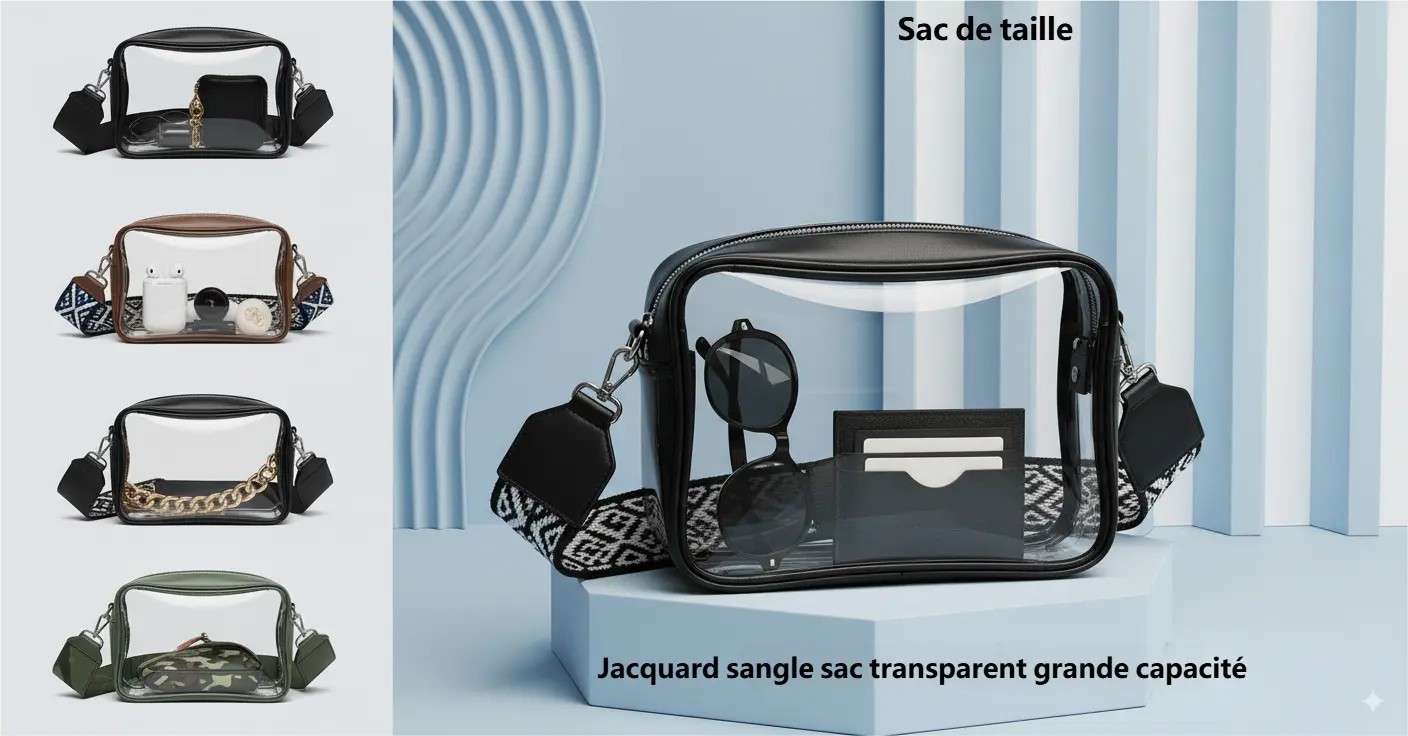
PicTech AI's published translation example illustrates why visual variants should be reviewed individually. It is not a measured accuracy test or a representation of this article's workflow.
Start with a variant map
Make a short table before editing: SKU, approved color name in the source language, approved name for the target market, and the image filename. Include material or finish when a color word alone is ambiguous. Keep the product team's approved names as the reference; a translated image should not invent a new shade or merge two variants.
For example, a catalog may contain two similar blue items. If one is labeled “navy” and the other “sky blue” in the listing data, check each photo against the physical SKU and approved naming. The example is a review method, not a claim about any PicTech AI output.
Translate, then inspect each label in context
PicTech AI image translation recognizes text in an image, translates it, removes the original wording, and places the translated text back into the design. Its page also describes an online editor for reviewing wording and layout. Use those capabilities to prepare the graphic, then compare each visible color label with the variant map.
Check four things separately:
- Meaning: Does the target-language color name match the approved catalog term?
- Association: Is the label next to the correct product photograph or swatch?
- Identity: Are SKU, model code, and size still tied to the right variant?
- Readability: Does the label remain legible at the size used on the storefront?
A visually plausible translation can still be assigned to the wrong image. If a label has moved, use the editor to adjust its placement, then recheck the exported file rather than approving only the editing canvas.
Compare the export with the listing
Place the source, translated export, variant map, and destination listing side by side. Check the thumbnail, selected swatch, title, image label, and SKU in the same pass. An image can be internally consistent yet contradict the storefront's variant selector.
Keep the approved export with its SKU and language in the file record. For broader copy checks, the brand and model-code review guide explains which identifiers should stay unchanged. Before a larger batch, verify the current language and usage terms on the live translation page.
Quick sign-off checklist
- Every color image is mapped to one approved SKU.
- Color names in graphics and listing data agree.
- Similar shades and finishes have been checked by someone familiar with the product.
- Labels remain readable and do not cover product details.
- The final storefront preview shows the correct image for each selectable variant.
Image translation can prepare localized copy and layout. The product team still owns the decision that a picture, a color name, and a SKU describe the same item.